R-Fiddle: An online playground for R code

datamindjo's avatar

r-fiddle_logowww.R-fiddle.org is an early stage beta that provides you with a free and powerful environment to write, run and share R-code right inside your browser. It even offers the option to include packages. Since a couple of days it’s gaining more and more traction, and was mentioned on the frontpage of Hacker News.

We designed it for those situations where you have code that you need to prototype quickly and then possibly share it with others for feedback. All this without needing a user account, or any scrap projects or files! We even included a very-easy-to-use ’embed’ function for blogs and website, so your visitors can edit and run R code on your own website or blog. This is the first version of R-fiddle, so do not hesitate to give us feedback.

Working together with the help of R-fiddle

You can use R-fiddle to share code snippets with colleagues…

View original post 526 more words

F# Neural Networks with FsLab

nn_previewNeural networks are very powerful tool and at the same time, it is not easy to use all its power. Now we are one step closer to it from F# and .NET. We will delegate model training to R using R Provider. Also we will use Deedle (that was announced some days ago) for handy data manipulation.

Prerequisites:

Learning from Data:

First of all, we need to load required assemblies into our FSI session. It is pretty easy with FsLab because package have bootstrapping script.

#load "..\packages\FsLab.0.1.4\FsLab.fsx"

The next step is to download and install missed R packages. For this demo, we need neuralnet for training neural network model and prediction, caret for data visualization.

open RProvider.utils
R.install_packages("MASS")
R.install_packages("pbkrtest")
R.install_packages("lattice")
R.install_packages("Matrix")
R.install_packages("mgcv")
R.install_packages("grid")
R.install_packages("neuralnet")
R.install_packages("caret")
R.install_packages("zoo")

Now we are ready to start work. We need to open namespaces and load a data set. For this demo, we have chosen iris data set, which is classic for lots of demos.

open Deedle
open RDotNet
open RProvider
open RProvider.``base``
open RProvider.datasets
open RProvider.neuralnet
open RProvider.caret

let iris : Frame<int, string> = R.iris.GetValue()

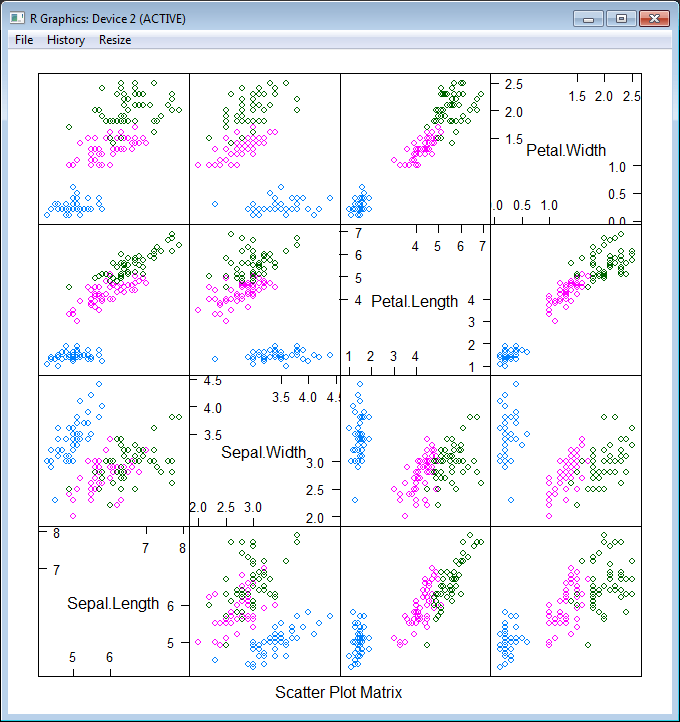
To better understand what we are going to do, let’s plot this data set. First of all, split data into two parts: features (Sepal.Length; Sepal.Width; Petal.Length; Petal.Width) and a target variable (Species). After that plot these data into different dimensions (different colors represent different Species).

let features =
iris
|> Frame.filterCols (fun c _ -> c <> "Species")
|> Frame.mapColValues (fun c -> c.As<double>())
let targets =
R.as_factor(iris.Columns.["Species"])

R.featurePlot(x = features, y = targets, plot = "pairs")
nn_features

As you see, our task is not trivial – we have 3 classes instead of 2 (that is not classic situation) and classes are not clearly separable. Nevertheless let’s try!  First of all, we need to split our data into 2 parts – training and testing data sets (70% vs 30%). The first part will be sent to the neural network for learning, the second one will be used for measuring model quality. Also let’s shuffle data to be honest.

iris.ReplaceColumn("Species", targets.AsNumeric())
let range = [1..iris.RowCount]
let trainingIdxs : int[] = R.sample(range, iris.RowCount*7/10).GetValue()
let testingIdxs : int[] = R.setdiff(range, trainingIdxs).GetValue()
let trainingSet = iris.Rows.[trainingIdxs]
let testingSet = iris.Rows.[testingIdxs]

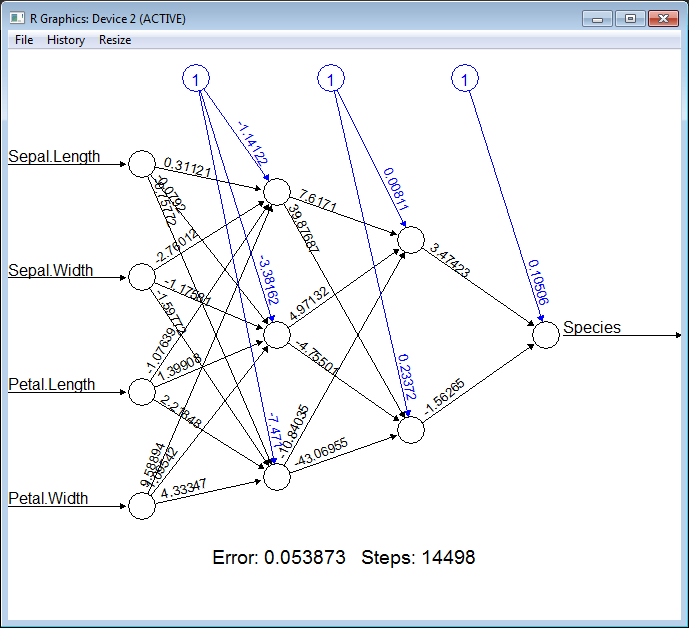
Now we are ready to train a neural network, all we need is to provide a formula (specify what is the input for our model and what is the output) “Species ~ Sepal.Length + Sepal.Width + Petal.Length + Petal.Width”, provide a data set and specify the structure of hidden layers. In the following example, we will train the network with two layers of hidden nodes, the first layer with 3 nodes and the second layer with 2 nodes.

let nn =
R.neuralnet(
"Species ~ Sepal.Length + Sepal.Width + Petal.Length + Petal.Width",
data = trainingSet, hidden = R.c(3,2),
err_fct = "ce", linear_output = true)

// Plot the resulting neural network with coefficients
R.eval(R.parse(text="library(grid)"))
R.plot_nn nn
nn_network

Cool! How simple it is. To be able to measure quality of the classification we need to split our training set into features and targets.

let testingFeatures =
testingSet
|> Frame.filterCols (fun c _ -> c <> "Species")
|> Frame.mapColValues (fun c -> c.As<double>())
let testingTargets =
testingSet.Columns.["Species"].As<int>().Values

To execute the neural network on the new data (apply our classification) we should call R.compute method and pass the training data set there.

let prediction =
R.compute(nn, testingFeatures)
.AsList().["net.result"].AsVector()
|> Seq.cast<double>
|> Seq.map (round >> int))

Finally, let’s compare prediction results with testing values:

let misclassified =
Seq.zip prediction testingTargets
|> Seq.filter (fun (a,b) -> a<>b)
|> Seq.length

printfn "Misclassified irises '%d' of '%d'" misclassified (testingSet.RowCount)

If you execute all these steps one by one, you will see that there are only ~3 misclassifies of 45 samples. Pretty well quality.

Full script:

#load "..\packages\FsLab.0.1.4\FsLab.fsx"

// You need to install 'nnet' and 'caret' packages if you do not have them
open RProvider.utils
R.install_packages("MASS")
R.install_packages("pbkrtest")
R.install_packages("lattice")
R.install_packages("Matrix")
R.install_packages("mgcv")
R.install_packages("grid")
R.install_packages("neuralnet")
R.install_packages("caret")
R.install_packages("zoo")

open Deedle
open RDotNet
open RProvider
open RProvider.``base``
open RProvider.datasets
open RProvider.neuralnet
open RProvider.caret

// Load data from R to Deedle frame
let iris : Frame<int, string> = R.iris.GetValue()

// Observe iris data set
let features =
iris
|> Frame.filterCols (fun c _ -> c <> "Species")
|> Frame.mapColValues (fun c -> c.As<double>())
let targets =
R.as_factor(iris.Columns.["Species"])

R.featurePlot(x = features, y = targets, plot = "pairs")

iris.ReplaceColumn("Species", targets.AsNumeric())
// Split data to training and testing sets (70% vs 30%)
let range = [1..iris.RowCount]
let trainingIdxs : int[] = R.sample(range, iris.RowCount*7/10).GetValue()
let testingIdxs : int[] = R.setdiff(range, trainingIdxs).GetValue()
let trainingSet = iris.Rows.[trainingIdxs]
let testingSet = iris.Rows.[testingIdxs]

// Train neural network
let nn =
R.neuralnet(
"Species ~ Sepal.Length + Sepal.Width + Petal.Length + Petal.Width",
data = trainingSet, hidden = R.c(3,2),
err_fct = "ce", linear_output = true)

// Plot the resulting neural network with coefficients
R.eval(R.parse(text="library(grid)"))
R.plot_nn nn

// Split testing set into features and targets
let testingFeatures =
testingSet
|> Frame.filterCols (fun c _ -> c <> "Species")
|> Frame.mapColValues (fun c -> c.As<double>())
let testingTargets =
testingSet.Columns.["Species"].As<int>().Values

// Predict `Species` for testingFeatures with neural network
let prediction =
R.compute(nn, testingFeatures)
.AsList().["net.result"].AsVector()
|> Seq.cast<double>
|> Seq.map (round >> int))

// Calculate number of misclassified irises
let misclassified =
Seq.zip prediction testingTargets
|> Seq.filter (fun (a,b) -> a<>b)
|> Seq.length

printfn "Misclassified irises '%d' of '%d'" misclassified (testingSet.RowCount)

P.S.

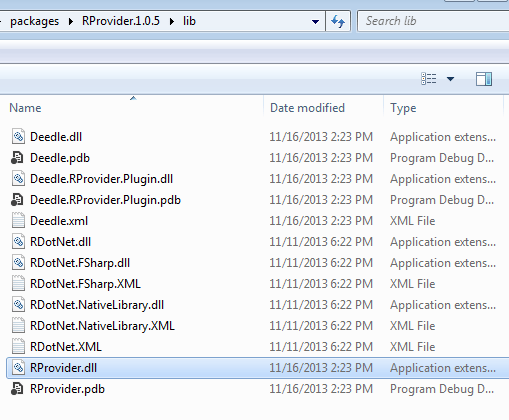
Notice, if you have problems with bootstrapping RProvider and/or converting R data frame to Deedle data frames – you need to verify that during installation of NuGet packages, all assemblies have been copied to RProvider’s lib sub-folder (see in the following picture).
deedle_rprovider

F# Weekly #46, 2013

deedle

Welcome to F# Weekly,

A roundup of F# content from this past week:

News

Video/Presentations

Blogs

That’s all for now.  Have a great week.

Previous F# Weekly edition – #45

F# Weekly #45, 2013

Welcome to F# Weekly,

A roundup of F# content from this past week:

News

Video/Presentations

Blogs

That’s all for now.  Have a great week.

Previous F# Weekly edition – #44

F# Interactive “branding”

FSI console has a pretty small font size by default. It is really uncomfortable to share screen with projector.  Source code in FSI is always small and hard to read. Never thought (until today) that I can configure font, color, font size and etc. In fact, it is very easy to do:

  1. Click Tools -> Options.
  2. Select Environment -> Fonts and Colors.
  3. In the ‘Show setting for‘ drop-down select ‘F# Interactive‘.FSIbranding
  4. Here it is – you can change whatever you want.
  5. That’s wonderful!

F# Weekly #44, 2013

Welcome to F# Weekly,

A roundup of F# content from this past week:

News

Video/Presentations

Blogs

That’s all for now.  Have a great week.

Previous F# Weekly edition – #43

Anniversary edition of F# Weekly #43, 2013 – One year together

Weekly-1y

Deer all,

A great thing happened this time one year ago – F# Weekly was born. It seems quite recently and at the same time was long ago. Many great things happened during this time, a lot of news were spread. I would like to invite you to feel the breath of nostalgia and look at first published weekly “F# Weekly #43, 2012“.

Thank you to all of you, for being with me all this time. F# Community is an excellent one, I am glad to be a part of it. You are awesome and it’s all thanks to you. Let’s make a small journey to the past and recall some news that occurred during this time.

Small F# time journey

Of course, there happened much more than mentioned in the list. It is impossible to get all things in one small post. F# community is growing as well as a number of ongoing activities. It takes more and more time for me each week to get all news and summarize them; F# Weekly posts become longer. We grow and will change the world for the better soon – be in touch with F# Weekly ;).

Finally, F# Weekly #43, a roundup of F# content from this past week:

News

Video/Presentations

Blogs

That’s all for now.  Have a great week.

Previous F# Weekly edition – #42

Stanford CoreNLP is available on NuGet for F#/C# devs

Update (2014, January 3): Links and/or samples in this post might be outdated. The latest version of samples are available on new Stanford.NLP.NET site.

nlp-logo-navbar

Stanford CoreNLP provides a set of natural language analysis tools which can take raw English language text input and give the base forms of words, their parts of speech, whether they are names of companies, people, etc., normalize dates, times, and numeric quantities, and mark up the structure of sentences in terms of phrases and word dependencies, and indicate which noun phrases refer to the same entities. Stanford CoreNLP is an integrated framework, which make it very easy to apply a bunch of language analysis tools to a piece of text. Starting from plain text, you can run all the tools on it with just two lines of code. Its analyses provide the foundational building blocks for higher-level and domain-specific text understanding applications.

Stanford CoreNLP integrates all Stanford NLP tools, including the part-of-speech (POS) taggerthe named entity recognizer (NER)the parser, and the coreference resolution system, and provides model files for analysis of English. The goal of this project is to enable people to quickly and painlessly get complete linguistic annotations of natural language texts. It is designed to be highly flexible and extensible. With a single option you can change which tools should be enabled and which should be disabled.

Stanford CoreNLP is here and available on NuGet. It is probably the most powerful package from whole The Stanford NLP Group software packages. Please, read usage overview on Stanford CoreNLP home page to understand what it can do, how you can configure an annotation pipeline, what steps are available for you, what models you need to have and so on.

I want to say thank you to Anonymous 😉 and @OneFrameLink for their contribution and stimulating me to finish this work.

Please follow next steps to get started:

Before using Stanford CoreNLP, we need to define and specify annotation pipeline. For example, annotators = tokenize, ssplit, pos, lemma, ner, parse, dcoref.

The next thing we need to do is to create StanfordCoreNLP pipeline. But to instantiate a pipeline, we need to specify all required properties or at least paths to all models used by pipeline that are specified in annotators string. Before starting samples, let’s define some helper function that will be used across all source code pieces: jarRoot is a path to folder where we extracted files from stanford-corenlp-3.2.0-models.jar; modelsRoot is a path to folder with all models files; ‘!’ is overloaded operator that converts model name to relative path to the model file.

let (@@) a b = System.IO.Path.Combine(a,b)
let jarRoot = __SOURCE_DIRECTORY__ @@ @"..\..\temp\stanford-corenlp-full-2013-06-20\stanford-corenlp-3.2.0-models\"
let modelsRoot = jarRoot @@ @"edu\stanford\nlp\models\"
let (!) path = modelsRoot @@ path

Now we are ready to instantiate the pipeline, but we need to do a small trick. Pipeline is configured to use default model files (for simplicity) and all paths are specified relatively to the root of stanford-corenlp-3.2.0-models.jar. To make things easier, we can temporary change current directory to the jarRoot, instantiate a pipeline and then change current directory back. This trick helps us dramatically decrease the number of code lines.

let props = Properties()
props.setProperty("annotators","tokenize, ssplit, pos, lemma, ner, parse, dcoref") |> ignore
props.setProperty("sutime.binders","0") |> ignore

let curDir = System.Environment.CurrentDirectory
System.IO.Directory.SetCurrentDirectory(jarRoot)
let pipeline = StanfordCoreNLP(props)
System.IO.Directory.SetCurrentDirectory(curDir)

However,  you do not have to do it. You can configure all models manually. The number of properties (especially paths to models) that you need to specify depends on the annotators value. Let’s assume for a moment that we are in Java world and we want to configure our pipeline in a custom way. Especially for this case, stanford-corenlp-3.2.0-models.jar contains StanfordCoreNLP.properties (you can find it in the folder with extracted files), where you can specify new property values out of code. Most of properties that we need to use for configuration are already mentioned in this file and you can easily understand what it what. But it is not enough to get it work, also you need to look into source code of Stanford CoreNLP. By the way, some days ago Stanford was moved CoreNLP source code into GitHub – now it is much easier to browse it.  Default paths to the models are specified in DefaultPaths.java file, property keys are listed in Constants.java file and information about which path match to which property name is contained in Dictionaries.java. Thus, you are able to dive deeper into pipeline configuration and do whatever you want. For lazy people I already have a working sample.

let props = Properties()
let (<==) key value = props.setProperty(key, value) |> ignore
"annotators"    <== "tokenize, ssplit, pos, lemma, ner, parse, dcoref"
"pos.model"     <== ! @"pos-tagger\english-bidirectional\english-bidirectional-distsim.tagger"
"ner.model"     <== ! @"ner\english.all.3class.distsim.crf.ser.gz"
"parse.model"   <== ! @"lexparser\englishPCFG.ser.gz"

"dcoref.demonym"            <== ! @"dcoref\demonyms.txt"
"dcoref.states"             <== ! @"dcoref\state-abbreviations.txt"
"dcoref.animate"            <== ! @"dcoref\animate.unigrams.txt"
"dcoref.inanimate"          <== ! @"dcoref\inanimate.unigrams.txt"
"dcoref.male"               <== ! @"dcoref\male.unigrams.txt"
"dcoref.neutral"            <== ! @"dcoref\neutral.unigrams.txt"
"dcoref.female"             <== ! @"dcoref\female.unigrams.txt"
"dcoref.plural"             <== ! @"dcoref\plural.unigrams.txt"
"dcoref.singular"           <== ! @"dcoref\singular.unigrams.txt"
"dcoref.countries"          <== ! @"dcoref\countries"
"dcoref.extra.gender"       <== ! @"dcoref\namegender.combine.txt"
"dcoref.states.provinces"   <== ! @"dcoref\statesandprovinces"
"dcoref.singleton.predictor"<== ! @"dcoref\singleton.predictor.ser"

let sutimeRules =
    [| ! @"sutime\defs.sutime.txt";
       ! @"sutime\english.holidays.sutime.txt";
       ! @"sutime\english.sutime.txt" |]
    |> String.concat ","
"sutime.rules"      <== sutimeRules
"sutime.binders"    <== "0"

let pipeline = StanfordCoreNLP(props)

As you see, this option is much longer and harder to do. I recommend to use the first one, especially if you do not need to change the default configuration.

And now the fun part. Everything else is pretty easy: we create an annotation from your text, path it through the pipeline and interpret the results.

let text = "Kosgi Santosh sent an email to Stanford University. He didn't get a reply.";

let annotation = Annotation(text)
pipeline.annotate(annotation)
use stream = new ByteArrayOutputStream()
pipeline.prettyPrint(annotation, new PrintWriter(stream))
printfn "%O" (stream.toString())

Certainly, you can extract all processing results from annotated test.

let customAnnotationPrint (annotation:Annotation) =
    printfn "-------------"
    printfn "Custom print:"
    printfn "-------------"
    let sentences = annotation.get(CoreAnnotations.SentencesAnnotation().getClass()) :?> java.util.ArrayList
    for sentence in sentences |> Seq.cast<CoreMap> do
        printfn "\n\nSentence : '%O'" sentence

    let tokens = sentence.get(CoreAnnotations.TokensAnnotation().getClass()) :?> java.util.ArrayList
    for token in (tokens |> Seq.cast<CoreLabel>) do
       let word = token.get(CoreAnnotations.TextAnnotation().getClass())
       let pos  = token.get(CoreAnnotations.PartOfSpeechAnnotation().getClass())
       let ner  = token.get(CoreAnnotations.NamedEntityTagAnnotation().getClass())
       printfn "%O \t[pos=%O; ner=%O]" word pos ner

    printfn "\nTree:"
    let tree = sentence.get(TreeCoreAnnotations.TreeAnnotation().getClass()) :?> Tree
    use stream = new ByteArrayOutputStream()
    tree.pennPrint(new PrintWriter(stream))
    printfn "The first sentence parsed is:\n %O" (stream.toString())

    printfn "\nDependencies:"
    let deps = sentence.get(SemanticGraphCoreAnnotations.CollapsedDependenciesAnnotation().getClass()) :?> SemanticGraph
    for edge in deps.edgeListSorted().toArray() |> Seq.cast<SemanticGraphEdge> do
        let gov = edge.getGovernor()
        let dep = edge.getDependent()
        printfn "%O(%s-%d,%s-%d)"
            (edge.getRelation())
            (gov.word()) (gov.index())
            (dep.word()) (dep.index())

The full code sample is available on GutHub, if you run it, you will see the following result:

Sentence #1 (9 tokens):
Kosgi Santosh sent an email to Stanford University.
[Text=Kosgi CharacterOffsetBegin=0 CharacterOffsetEnd=5 PartOfSpeech=NNP Lemma=Kosgi NamedEntityTag=PERSON] [Text=Santosh CharacterOffsetBegin=6 CharacterOffsetEnd=13 PartOfSpeech=NNP Lemma=Santosh NamedEntityTag=PERSON] [Text=sent CharacterOffsetBegin=14 CharacterOffsetEnd=18 PartOfSpeech=VBD Lemma=send NamedEntityTag=O] [Text=an CharacterOffsetBegin=19 CharacterOffsetEnd=21 PartOfSpeech=DT Lemma=a NamedEntityTag=O] [Text=email CharacterOffsetBegin=22 CharacterOffsetEnd=27 PartOfSpeech=NN Lemma=email NamedEntityTag=O] [Text=to CharacterOffsetBegin=28 CharacterOffsetEnd=30 PartOfSpeech=TO Lemma=to NamedEntityTag=O] [Text=Stanford CharacterOffsetBegin=31 CharacterOffsetEnd=39 PartOfSpeech=NNP Lemma=Stanford NamedEntityTag=ORGANIZATION] [Text=University CharacterOffsetBegin=40 CharacterOffsetEnd=50 PartOfSpeech=NNP Lemma=University NamedEntityTag=ORGANIZATION] [Text=. CharacterOffsetBegin=50 CharacterOffsetEnd=51 PartOfSpeech=. Lemma=. NamedEntityTag=O]
(ROOT
(S
(NP (NNP Kosgi) (NNP Santosh))
(VP (VBD sent)
(NP (DT an) (NN email))
(PP (TO to)
(NP (NNP Stanford) (NNP University))))
(. .)))

nn(Santosh-2, Kosgi-1)
nsubj(sent-3, Santosh-2)
root(ROOT-0, sent-3)
det(email-5, an-4)
dobj(sent-3, email-5)
nn(University-8, Stanford-7)
prep_to(sent-3, University-8)

Sentence #2 (7 tokens):
He didn’t get a reply.
[Text=He CharacterOffsetBegin=52 CharacterOffsetEnd=54 PartOfSpeech=PRP Lemma=he NamedEntityTag=O] [Text=did CharacterOffsetBegin=55 CharacterOffsetEnd=58 PartOfSpeech=VBD Lemma=do NamedEntityTag=O] [Text=n’t CharacterOffsetBegin=58 CharacterOffsetEnd=61 PartOfSpeech=RB Lemma=not NamedEntityTag=O] [Text=get CharacterOffsetBegin=62 CharacterOffsetEnd=65 PartOfSpeech=VB Lemma=get NamedEntityTag=O] [Text=a CharacterOffsetBegin=66 CharacterOffsetEnd=67 PartOfSpeech=DT Lemma=a NamedEntityTag=O] [Text=reply CharacterOffsetBegin=68 CharacterOffsetEnd=73 PartOfSpeech=NN Lemma=reply NamedEntityTag=O] [Text=. CharacterOffsetBegin=73 CharacterOffsetEnd=74 PartOfSpeech=. Lemma=. NamedEntityTag=O]
(ROOT
(S
(NP (PRP He))
(VP (VBD did) (RB n’t)
(VP (VB get)
(NP (DT a) (NN reply))))
(. .)))

nsubj(get-4, He-1)
aux(get-4, did-2)
neg(get-4, n’t-3)
root(ROOT-0, get-4)
det(reply-6, a-5)
dobj(get-4, reply-6)

Coreference set:
(2,1,[1,2)) -> (1,2,[1,3)), that is: “He” -> “Kosgi Santosh”

C# Sample

C# samples are also available on GitHub.

Stanford Temporal Tagger(SUTime)

nlp-logo-navbar

SUTime is a library for recognizing and normalizing time expressions. SUTime is available as part of the Stanford CoreNLP pipeline and can be used to annotate documents with temporal information. It is a deterministic rule-based system designed for extensibility.

There is one more useful thing that we can do with CoreNLP – time extraction. The way that we use CoreNLP is pretty similar to the previous sample. Firstly, we create an annotation pipeline and add there all required annotators. (Notice that this sample also use the operator defined at the beginning of the post)

let pipeline = AnnotationPipeline()
pipeline.addAnnotator(PTBTokenizerAnnotator(false))
pipeline.addAnnotator(WordsToSentencesAnnotator(false))

let tagger = MaxentTagger(! @"pos-tagger\english-bidirectional\english-bidirectional-distsim.tagger")
pipeline.addAnnotator(POSTaggerAnnotator(tagger))

let sutimeRules =
    [| ! @"sutime\defs.sutime.txt";
       ! @"sutime\english.holidays.sutime.txt";
       ! @"sutime\english.sutime.txt" |]
    |> String.concat ","
let props = Properties()
props.setProperty("sutime.rules", sutimeRules ) |> ignore
props.setProperty("sutime.binders", "0") |> ignore
pipeline.addAnnotator(TimeAnnotator("sutime", props))

Now we are ready to annotate something. This part is also equal to the same one from the previous sample.

let text = "Three interesting dates are 18 Feb 1997, the 20th of july and 4 days from today."
let annotation = Annotation(text)
annotation.set(CoreAnnotations.DocDateAnnotation().getClass(), "2013-07-14") |> ignore
pipeline.annotate(annotation)

And finally, we need to interpret annotating results.

printfn "%O\n" (annotation.get(CoreAnnotations.TextAnnotation().getClass()))
let timexAnnsAll = annotation.get(TimeAnnotations.TimexAnnotations().getClass()) :?> java.util.ArrayList
for cm in timexAnnsAll |> Seq.cast<CoreMap> do
    let tokens = cm.get(CoreAnnotations.TokensAnnotation().getClass()) :?> java.util.List
    let first = tokens.get(0)
    let last = tokens.get(tokens.size() - 1)
    let time = cm.get(TimeExpression.Annotation().getClass()) :?> TimeExpression
    printfn "%A [from char offset '%A' to '%A'] --> %A"
        cm first last (time.getTemporal())

The full code sample is available on GutHub, if you run it you will see the following result:

18 Feb 1997 [from char offset ’18’ to ‘1997’] –> 1997-2-18
the 20th of july [from char offset ‘the’ to ‘July’] –> XXXX-7-20
4 days from today [from char offset ‘4’ to ‘today’] –> THIS P1D OFFSET P4D

C# Sample

C# samples are also available on GitHub.

Conclusion

There is a pretty awesome library. I hope you enjoy it. Try it out right now!

There are some other more specific Stanford packages that are already available on NuGet: